오늘은 Exploration 3 카메라 스티커앱 만들기를 진행했다.
스티커앱의 대략적인 제작 과정은 아래와 같다.
- 이미지 전처리
- 얼굴 검출
- 랜드마크 검출
- 스티커 이미지 적용
1. 이미지 전처리
스티커를 자연스럽게 적용하기 위해서 눈, 코, 입과 같은 얼굴 주요 부위의 위치를 파악하는 것이 중요하다.
이 위치들을 찾아내는 기술을 랜드마크(landmark) 또는 조정(alignment)이라고 하며, 더 큰 범위로는 keypoint detection이라고 한다.
먼저, 데이터를 준비한다.
import matplotlib.pyplot as plt
import numpy as np
import cv2
import dlib

# 이미지 로드
my_image_path = "/content/face.png"
img_bgr = cv2.imread(my_image_path)                 # 이미지 로드
img_rgb = cv2.cvtColor(img_bgr, cv2.COLOR_BGR2RGB)  # BRG → RGB 변환
img_show = img_bgr.copy()                           # 출력용 이미지를 따로 보관
plt.imshow(img_rgb)                                 # 이미지를 출력하기 위해 출력할 이미지를 올려준다. (실제 출력은 하지 않음)
plt.show()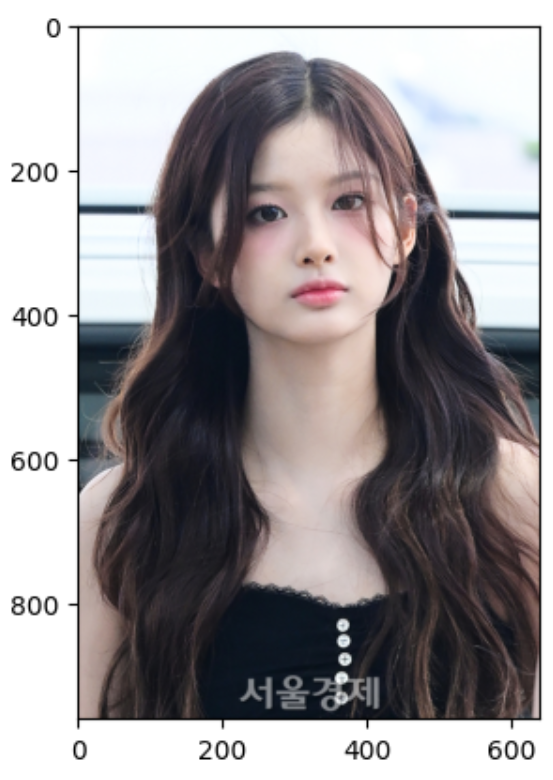
2. 얼굴 검출
bounding box를 먼저 찾은 다음, box 내부의 key points를 예측하는 top-down 방식으로 진행한다.
(1) 얼굴 검출에 사용할 detector 모델을 선언하고 bounding box를 추출한다.
# detector 선언
detector_hog = dlib.get_frontal_face_detector() # 기본 얼굴 감지기

# 얼굴의 bounding box 추출
ing_rgb = cv2.cvtColor(img_bgr, cv2.COLOR_BGR2RGB)
dlib_rects = detector_hog(img_rgb, 1) # (image, num of image pyramid)

# 찾은 얼굴 영역 박스 리스트 (여러 얼굴이 있을 수 있음)
print(dlib_rects)
# 출력 결과
rectangles[[(216, 192) (439, 415)]]
(2) 찾은 좌표를 바탕으로 box를 그린다.
for dlib_rect in dlib_rects: # 찾은 얼굴 영역의 좌표
    l = dlib_rect.left()   # 왼쪽
    t = dlib_rect.top()    # 위쪽
    r = dlib_rect.right()  # 오른쪽
    b = dlib_rect.bottom() # 아래쪽

    cv2.rectangle(img_show, (l,t), (r,b), (0,255,0), 2, lineType=cv2.LINE_AA) # 시작점의 좌표와 종료점 좌표로 직각 사각형을 그림

img_show_rgb =  cv2.cvtColor(img_show, cv2.COLOR_BGR2RGB)
plt.imshow(img_show_rgb)
plt.show()
3. 랜드마크 검출
(1) 모델의 가중치 파일을 다운받고 압축 해체 후 로드한다.
wget http://dlib.net/files/shape_predictor_68_face_landmarks.dat.bz2
bzip2 -d /content/shape_predictor_68_face_landmarks.dat.bz2
# 모델 로드
landmark_predictor = dlib.shape_predictor("/content/shape_predictor_68_face_landmarks.dat")
(2) 랜드마크의 위치를 담은 리스트를 만든 다음, 리스트에의 좌표에 흰색 원들을 그려 랜드마크 위치를 시각화한다.
# 랜드마크의 위치를 저장할 list
list_landmarks = []

# 얼굴 영역 박스 마다 face landmark를 찾고,
# face landmark 좌표를 저장한다.
for dlib_rect in dlib_rects:
    # 모든 landmark의 위치 정보를 points 변수에 저장
    points = landmark_predictor(img_rgb, dlib_rect)

    # 각각의 landmark 위치 정보를 (x,y) 형태로 변환하여 list_points 리스트에 저장
    list_points = list(map(lambda p: (p.x, p.y), points.parts()))

    # list_landmarks에 랜드마크 리스트를 저장
    list_landmarks.append(list_points)

# list_landmarks의 원소가 한 개(이미지의 얼굴이 하나) 있으므로 아래 반복문은 한 번만 실행됨
for landmark in list_landmarks:
    for point in landmark:
        cv2.circle(img_show, point, 2, (0, 255, 255), -1)
            # cv2.circle: OpenCV의 원을 그리는 함수
            # img_show 이미지 위 각각의 point에
            # 크기가 2이고, (0, 255, 255)의 색으로 내부가 채워진(-1) 원을 그린다.
            # 마지막 인수가 자연수라면 그 만큼의 두께의 선으로 원이 그려진다.

img_show_rgb = cv2.cvtColor(img_show, cv2.COLOR_BGR2RGB)
plt.imshow(img_show_rgb)
plt.show()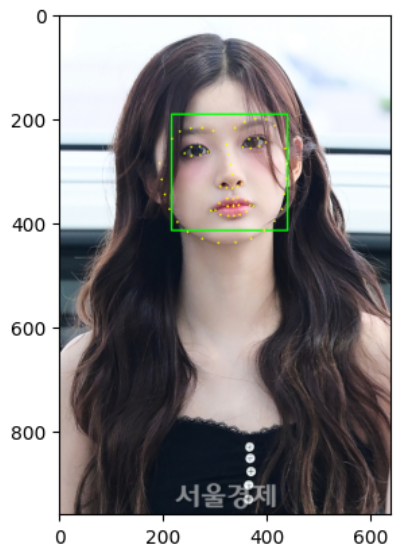
4. 스티커 적용

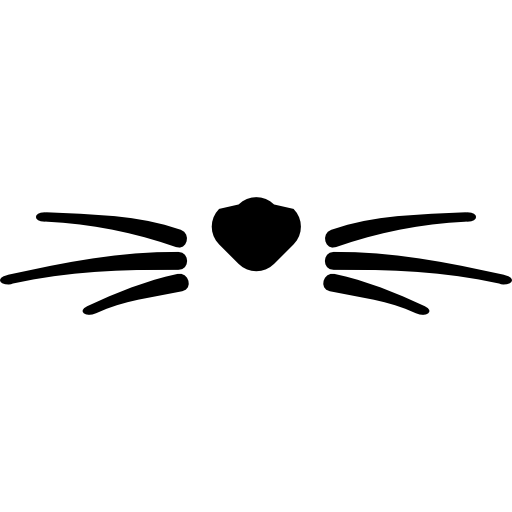
(1) 적용할 스티커는 고양이 코 이미지이므로 코 중앙 좌표인 30을 사용한다.
# zip() : 두 그룹의 데이터를 서로 엮어주는 함수
# dlib_rects와 list_landmarks 데이터를 엮어 주었음
# dlib_rects : 얼굴 영역을 저장하고 있는 값 (얼굴 영역 박스 리스트)
# → rectangles[[(216, 192) (439, 415)]]
# list_landmarks : 68개의 랜드마크 값 저장(이목구비 위치(x,y))
# → [[(193, 286), (197, 317), (203, 346), (212, 374), (227, 399), (247, 418), (275, 431), (306, 439), (339, 438), (369, 431), (394, 415), (414, 397), (428, 374), (433, 345), (437, 316), (438, 287), (435, 258), (217, 239), (232, 225), (253, 219), (275, 218), (296, 224), (338, 218), (356, 207), (377, 201), (398, 202), (414, 214), (322, 250), (325, 269), (329, 288), (332, 307), (310, 331), (322, 333), (333, 334), (343, 331), (351, 326), (241, 267), (254, 255), (270, 254), (286, 264), (271, 270), (254, 272), (353, 255), (365, 240), (382, 238), (397, 246), (385, 254), (368, 257), (292, 377), (308, 363), (323, 354), (334, 355), (343, 352), (358, 357), (373, 368), (360, 379), (347, 385), (336, 387), (325, 387), (310, 385), (300, 376), (324, 368), (335, 367), (345, 366), (367, 367), (345, 367), (335, 369), (324, 369)]]

# 얼굴 영역을 저장하고 있는 값과 68개의 랜드마크를 저장하고 있는 값으로 반복문 실행
for dlib_rect, landmark in zip(dlib_rects, list_landmarks):
    print(landmark[30]) # 코 중앙의 index: 30
    x = landmark[30][0]
    y = landmark[30][1]
    w = h = dlib_rect.width()
    print (f'(x,y) : ({x},{y})') # 코 중앙의 좌표
    print (f'(w,h) : ({w},{h})')
(2) 스티커 이미지를 로드한 후, 원본 이미지에 스티커 이미지가 들어갈 위치를 조정한다.
# 스티커 이미지 로드
img_sticker = cv2.imread("/content/cat-whiskers.png") # cv2.imread(이미지 경로) → image객체 행렬을 반환
img_sticker = cv2.resize(img_sticker, (w,h)) # 스티커 이미지 조정

# 원본 이미지에 스티커 이미지를 추가하기 위해서 x, y 좌표를 조정해야 한다.
# 이미지 시작점은 top-left(왼쪽 상단) 좌표이기 때문이다.
# 즉, refined_x, refined_y값에서 스티커 이미지가 시작된다.
refined_x = x - w // 2
refined_y = y - h // 2

print (f'(x,y) : ({refined_x},{refined_y})')
# 출력결과
(x,y) : (220,195)
(3) 스티커 이미지를 적용한다.
# 스티커 이미지 적용
# 좌표 순서가 y, x임에 유의한다. (y, x, rgb channel)
sticker_area = img_show[refined_y : refined_y + img_sticker.shape[0],
                        refined_x : refined_x + img_sticker.shape[1]]

# 스티커 이미지 배경을 투명 처리

# 1. 스티커에서 흰색 배경 부분만 찾기 (R,G,B 3채널이 모두 255인 곳)
condition_2d = np.all(img_sticker == 255, axis=-1)

# 2. 2D 맵을 3D(h, w, 3)로 다시 확장하여 sticker_area, img_sticker와 shape을 맞춘다.
condition_3d = condition_2d[..., np.newaxis]

img_show[refined_y : refined_y + img_sticker.shape[0],
         refined_x : refined_x + img_sticker.shape[1]] = \
    np.where(condition_3d, sticker_area, img_sticker).astype(np.uint8)

# 스티커 적용 이미지
plt.imshow(cv2.cvtColor(img_show, cv2.COLOR_BGR2RGB))
plt.show()
(4) 원본에 스티커를 적용한 최종 이미지
# 최종 이미지
sticker_area = img_bgr[refined_y : refined_y + img_sticker.shape[0],
                        refined_x : refined_x + img_sticker.shape[1]]

condition_2d = np.all(img_sticker == 255, axis=-1)
condition_3d = condition_2d[..., np.newaxis]

img_bgr[refined_y : refined_y + img_sticker.shape[0],
         refined_x : refined_x + img_sticker.shape[1]] = \
    np.where(condition_3d, sticker_area, img_sticker).astype(np.uint8)

plt.imshow(cv2.cvtColor(img_bgr, cv2.COLOR_BGR2RGB)) # rgb만 적용해놓은 원본 이미지에 고양이 귀 이미지를 덮어 씌운 이미지가 나오게 된다.
plt.show()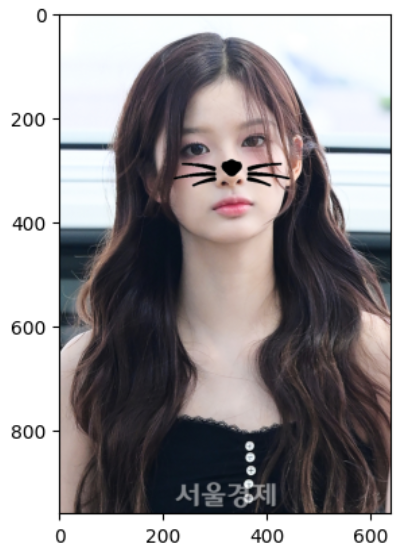
기울어진 얼굴 이미지도 잘 잡을까?
얼굴이 기울어진 새로운 이미지로 얼굴 검출을 시도해 보겠다.
import cv2
import dlib
import numpy as np
import matplotlib.pyplot as plt

# --- 1. 준비 단계 ---
# 필요한 파일 경로 설정
img_path = "/content/스크린샷 2025-10-21 144457.png"
sticker_path = "cat-whiskers.png"

# --- 2. 모델 및 이미지 로드 ---
detector_hog = dlib.get_frontal_face_detector()
img_bgr = cv2.imread(img_path)
img_sticker = cv2.imread(sticker_path)

img_show = img_bgr.copy() # 복사본 생성

# --- 3. 얼굴 검출 ---
# 얼굴의 bounding box 추출
img_rgb = cv2.cvtColor(img_bgr, cv2.COLOR_BGR2RGB)
dlib_rects = detector_hog(img_rgb, 1) # (image, num of image pyramid)

# 찾은 얼굴 영역 박스 리스트 (여러 얼굴이 있을 수 있음)
print(dlib_rects)

for dlib_rect in dlib_rects: # 찾은 얼굴 영역의 좌표
    l = dlib_rect.left()   # 왼쪽
    t = dlib_rect.top()    # 위쪽
    r = dlib_rect.right()  # 오른쪽
    b = dlib_rect.bottom() # 아래쪽

    cv2.rectangle(img_show, (l,t), (r,b), (0,255,0), 2, lineType=cv2.LINE_AA) # 시작점의 좌표와 종료점 좌표로 직각 사각형을 그림

img_show_rgb =  cv2.cvtColor(img_show, cv2.COLOR_BGR2RGB)
plt.imshow(img_show_rgb)
plt.show()
# 출력 결과
rectangles[]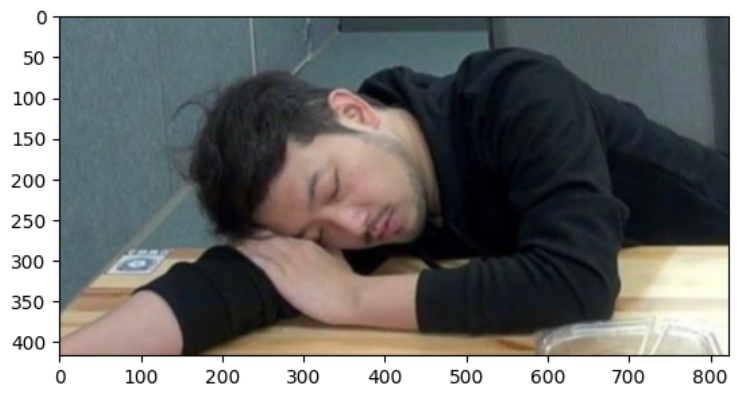
눈을 감아서인지 누워 있어서인지, 얼굴 검출을 못 하는 것을 알 수 있다.
그렇다면 이 이미지(침착맨)가 아닌, 원본(설윤) 이미지를 회전시켜도 얼굴을 못 잡을까?
원본 이미지를 회전시켜 얼굴 검출 시도
from PIL import Image
from torchvision import transforms
import torchvision.transforms.functional as F

# --- 1. 이미지 로드 및 회전 ---
image = Image.open("/content/face.png")

transform = transforms.Compose(
    [
        transforms.Lambda(lambda img: F.rotate(img, angle=90)),
    ]
)
transformed_image = transform(image)

# --- 2. 모델 이미지 로드 ---
detector_hog = dlib.get_frontal_face_detector()
img_sticker = cv2.imread(sticker_path)

# # PIL → numpy 변환
img_rgb = np.array(transformed_image)

# --- 3. 얼굴 검출 ---
# 얼굴의 bounding box 추출
dlib_rects = detector_hog(img_rgb, 1) # (image, num of image pyramid)

# 찾은 얼굴 영역 박스 리스트 (여러 얼굴이 있을 수 있음)
print(dlib_rects)

img_show = img_rgb.copy()

for dlib_rect in dlib_rects: # 찾은 얼굴 영역의 좌표
    l = dlib_rect.left()   # 왼쪽
    t = dlib_rect.top()    # 위쪽
    r = dlib_rect.right()  # 오른쪽
    b = dlib_rect.bottom() # 아래쪽

    cv2.rectangle(img_show, (l,t), (r,b), (0,255,0), 2, lineType=cv2.LINE_AA) # 시작점의 좌표와 종료점 좌표로 직각 사각형을 그림

plt.imshow(img_show)
plt.show()
원본 이미지를 90도 회전시킨 이미지 역시 얼굴 검출을 하지 못 하는 모습이다.
dlib.get_frontal_face_detector()는 정면 이미지의 얼굴만 검출할 수 있기 때문에, 회전된 이미지에 대해서는 검출이 불가능하다는 점이 실패의 이유일 것이라고 생각한다.
이번엔 밝기를 조절해보자
# --- 1. 모델, 이미지 로드 ---
image_path = "/content/face.png"

detector = dlib.get_frontal_face_detector()
img_bgr = cv2.imread(image_path)

# --- 2. 이미지 밝기 조절 ---
alpha = 1 # 대비 (1: 유지)
beta_list = [-400, -390, -380, 130, 140, 150] # 밝기 (양수: 밝게, 음수: 어둡게)

for beta in beta_list:
    img_result_cv = cv2.convertScaleAbs(img_bgr, alpha=alpha, beta=beta)
    # 얼굴의 bounding box 추출
    img_rgb = cv2.cvtColor(img_result_cv, cv2.COLOR_BGR2RGB)
    dlib_rects = detector_hog(img_rgb, 1) # (image, num of image pyramid)

    # 찾은 얼굴 영역 박스 리스트 (여러 얼굴이 있을 수 있음)
    print(f"beta: {beta}, dlib_rects: {dlib_rects}")
# 출력 결과
beta: -400, dlib_rects: rectangles[]
beta: -390, dlib_rects: rectangles[[(216, 192) (439, 415)]]
beta: -380, dlib_rects: rectangles[[(216, 192) (439, 415)]]
beta: 130, dlib_rects: rectangles[[(200, 171) (468, 439)]]
beta: 140, dlib_rects: rectangles[]
beta: 150, dlib_rects: rectangles[]
음수의 밝기에서는 약 -390, 양수의 밝기에서는 약 130까지 얼굴 검출이 가능했다.
이제 밝은 이미지와 어두운 이미지의 차이를 알아보자
밝은 이미지
# 밝기: 130
alpha = 1
beta = 130

img_result_cv = cv2.convertScaleAbs(img_bgr, alpha=alpha, beta=beta)

img_show = img_result_cv.copy() # 복사본 생성

# --- 3. 얼굴 검출 ---
# 얼굴의 bounding box 추출
img_rgb = cv2.cvtColor(img_result_cv, cv2.COLOR_BGR2RGB)
dlib_rects = detector_hog(img_rgb, 1) # (image, num of image pyramid)

for dlib_rect in dlib_rects: # 찾은 얼굴 영역의 좌표
    l = dlib_rect.left()   # 왼쪽
    t = dlib_rect.top()    # 위쪽
    r = dlib_rect.right()  # 오른쪽
    b = dlib_rect.bottom() # 아래쪽

    cv2.rectangle(img_show, (l,t), (r,b), (0,255,0), 2, lineType=cv2.LINE_AA) # 시작점의 좌표와 종료점 좌표로 직각 사각형을 그림

img_show_rgb =  cv2.cvtColor(img_show, cv2.COLOR_BGR2RGB)
plt.imshow(img_show_rgb)
plt.show()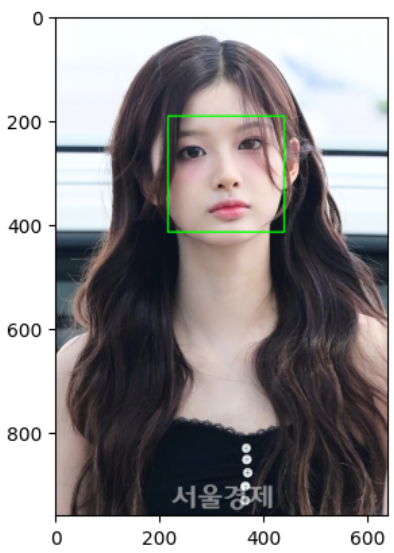

원본(왼쪽)과 비교해보니 밝기를 올렸을 때 박스의 영역이 약간 커졌다는 점을 발견할 수 있었다.
랜드마크 검출과 스티커 적용까지 해보자.
# --- 랜드마크 검출 ---
landmark_predictor = dlib.shape_predictor("/content/shape_predictor_68_face_landmarks.dat")

list_landmarks = []

for dlib_rect in dlib_rects:
    points = landmark_predictor(img_rgb, dlib_rect)
    list_points = list(map(lambda p: (p.x, p.y), points.parts()))
    list_landmarks.append(list_points)

for landmark in list_landmarks:
    for point in landmark:
        cv2.circle(img_show, point, 2, (0, 0, 0), -1)

img_show_rgb = cv2.cvtColor(img_show, cv2.COLOR_BGR2RGB)
plt.imshow(img_show_rgb)
plt.show()

# --- 스티커 적용 ---
for dlib_rect, landmark in zip(dlib_rects, list_landmarks):
    print(landmark[30]) # 코 끝의 index: 30
    x = landmark[30][0]
    y = landmark[30][1]
    w = h = dlib_rect.width()
    print (f'(x,y) : ({x},{y})') # 코의 중심점
    print (f'(w,h) : ({w},{h})')

img_sticker = cv2.imread("/content/cat-whiskers.png")
img_sticker = cv2.resize(img_sticker, (w,h))

refined_x = x - w // 2
refined_y = y - h // 2

# 최종 이미지
sticker_area = img_result_cv[refined_y : refined_y + img_sticker.shape[0],
                        refined_x : refined_x + img_sticker.shape[1]]

condition_2d = np.all(img_sticker == 255, axis=-1)
condition_3d = condition_2d[..., np.newaxis]

img_result_cv[refined_y : refined_y + img_sticker.shape[0],
             refined_x : refined_x + img_sticker.shape[1]] = \
        np.where(condition_3d, sticker_area, img_sticker).astype(np.uint8)

plt.imshow(cv2.cvtColor(img_result_cv, cv2.COLOR_BGR2RGB)) # rgb만 적용해놓은 원본 이미지에 고양이 귀 이미지를 덮어 씌운 이미지가 나오게 된다.
plt.show()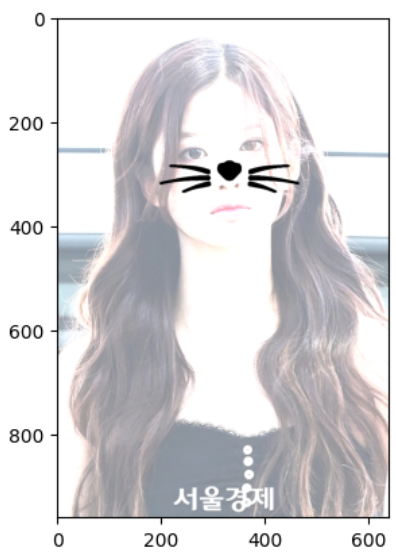
어두운 이미지
# 밝기: -390
alpha = 1
beta = -390

img_result_cv = cv2.convertScaleAbs(img_bgr, alpha=alpha, beta=beta)

img_show = img_result_cv.copy() # 복사본 생성

# --- 3. 얼굴 검출 ---
# 얼굴의 bounding box 추출
img_rgb = cv2.cvtColor(img_result_cv, cv2.COLOR_BGR2RGB)
dlib_rects = detector_hog(img_rgb, 1) # (image, num of image pyramid)

for dlib_rect in dlib_rects: # 찾은 얼굴 영역의 좌표
    l = dlib_rect.left()   # 왼쪽
    t = dlib_rect.top()    # 위쪽
    r = dlib_rect.right()  # 오른쪽
    b = dlib_rect.bottom() # 아래쪽

    cv2.rectangle(img_show, (l,t), (r,b), (0,255,0), 2, lineType=cv2.LINE_AA) # 시작점의 좌표와 종료점 좌표로 직각 사각형을 그림

img_show_rgb =  cv2.cvtColor(img_show, cv2.COLOR_BGR2RGB)
plt.imshow(img_show_rgb)
plt.show()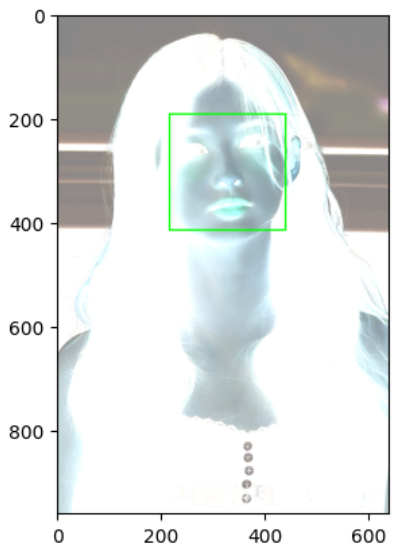
beta 값을 극단적으로 낮췄더니 어두운 게 아니라 색상 반전이 되어버렸는데, cv2.convertScaleAbs()는 계산 후 절댓값을 취하기 때문에 일정 값이 넘어가면 오히려 beta값이 커져서 밝아지게 되고, 색상 반전처럼 보이는 현상이 나타나게 된다고 한다.
그래도 얼굴 검출은 된 모습인데, 이 경우는 처음의 박스 영역과 거의 동일해 보인다.
하지만, 이건 어두운 이미지라고 보기 어려우니 대비(alpha)값을 조절해서 다시 얼굴 검출을 해보겠다.
alpha_list = [0.01, 0.05, 0.1, 0.2, 0.3]
beta = 0

for alpha in alpha_list:
    img_result_cv = cv2.convertScaleAbs(img_bgr, alpha=alpha, beta=beta)
    # 얼굴의 bounding box 추출
    img_rgb = cv2.cvtColor(img_result_cv, cv2.COLOR_BGR2RGB)
    dlib_rects = detector_hog(img_rgb, 1) # (image, num of image pyramid)

    # 찾은 얼굴 영역 박스 리스트 (여러 얼굴이 있을 수 있음)
    print(f"alpha: {alpha}, dlib_rects: {dlib_rects}")
# 출력 결과
alpha: 0.01, dlib_rects: rectangles[]
alpha: 0.05, dlib_rects: rectangles[]
alpha: 0.1, dlib_rects: rectangles[[(200, 171) (468, 439)]]
alpha: 0.2, dlib_rects: rectangles[[(200, 171) (468, 439)]]
alpha: 0.3, dlib_rects: rectangles[[(200, 171) (468, 439)]]alpha 값이 약 0.05 부터는 얼굴 검출이 불가능해진다.
# 검출 가능한 최소 대비인 0.1 적용
alpha = 0.1
beta = 0

img_result_cv = cv2.convertScaleAbs(img_bgr, alpha=alpha, beta=beta)

img_show = img_result_cv.copy() # 복사본 생성

# --- 3. 얼굴 검출 ---
# 얼굴의 bounding box 추출
img_rgb = cv2.cvtColor(img_result_cv, cv2.COLOR_BGR2RGB)
dlib_rects = detector_hog(img_rgb, 1) # (image, num of image pyramid)

for dlib_rect in dlib_rects: # 찾은 얼굴 영역의 좌표
    l = dlib_rect.left()   # 왼쪽
    t = dlib_rect.top()    # 위쪽
    r = dlib_rect.right()  # 오른쪽
    b = dlib_rect.bottom() # 아래쪽

    cv2.rectangle(img_show, (l,t), (r,b), (0,255,0), 2, lineType=cv2.LINE_AA) # 시작점의 좌표와 종료점 좌표로 직각 사각형을 그림

img_show_rgb =  cv2.cvtColor(img_show, cv2.COLOR_BGR2RGB)
plt.imshow(img_show_rgb)
plt.show()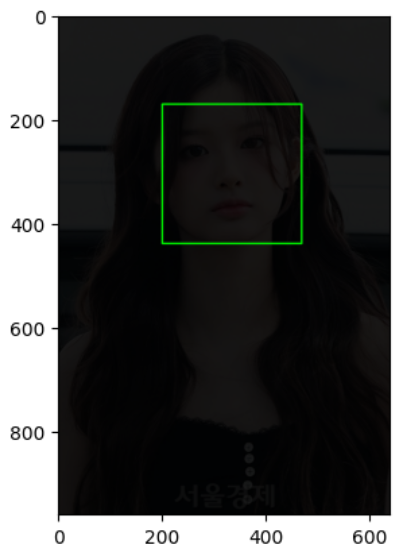
눈으로는 거의 안 보이지만 boundimg box는 성공적으로 찾아냈다.
이어서 랜드마크, 스티커까지 적용해보자
# --- 랜드마크 검출 ---
landmark_predictor = dlib.shape_predictor("/content/shape_predictor_68_face_landmarks.dat")

list_landmarks = []

for dlib_rect in dlib_rects:
    points = landmark_predictor(img_rgb, dlib_rect)
    list_points = list(map(lambda p: (p.x, p.y), points.parts()))
    list_landmarks.append(list_points)

for landmark in list_landmarks:
    for point in landmark:
        cv2.circle(img_show, point, 2, (0, 255, 255), -1)


# --- 스티커 적용 ---
for dlib_rect, landmark in zip(dlib_rects, list_landmarks):
    print(landmark[30]) # 코 끝의 index: 30
    x = landmark[30][0]
    y = landmark[30][1]
    w = h = dlib_rect.width()
    print (f'(x,y) : ({x},{y})') # 코의 중심점
    print (f'(w,h) : ({w},{h})')

img_sticker = cv2.imread("/content/cat-whiskers.png")
img_sticker = cv2.resize(img_sticker, (w,h))

refined_x = x - w // 2
refined_y = y - h // 2

sticker_area = img_show[refined_y : refined_y + img_sticker.shape[0],
                        refined_x : refined_x + img_sticker.shape[1]]

condition_2d = np.all(img_sticker == 255, axis=-1)
condition_3d = condition_2d[..., np.newaxis]

img_show[refined_y : refined_y + img_sticker.shape[0],
         refined_x : refined_x + img_sticker.shape[1]] = \
    np.where(condition_3d, sticker_area, img_sticker).astype(np.uint8)

plt.imshow(cv2.cvtColor(img_show, cv2.COLOR_BGR2RGB))
plt.show()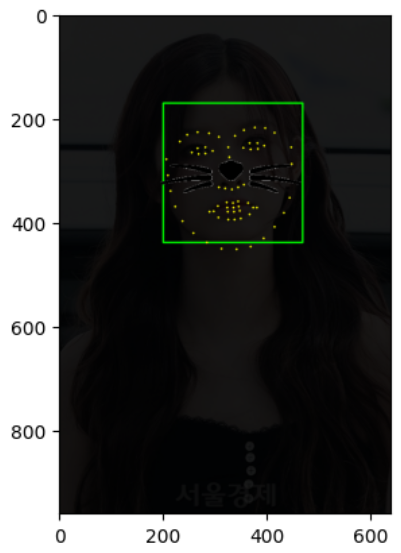
성공적으로 랜드마크, 스티커를 적용했다.
마지막으로 촬영 거리를 더 멀게 해보자
import cv2
import dlib
import numpy as np
import matplotlib.pyplot as plt

# --- 1. 준비 단계 ---
# 필요한 파일 경로 설정
img_path = "/content/gd.png"
sticker_path = "cat-whiskers.png"

# --- 2. 모델 및 이미지 로드 ---
detector_hog = dlib.get_frontal_face_detector()
img_bgr = cv2.imread(img_path)
img_sticker = cv2.imread(sticker_path)

img_show = img_bgr.copy() # 복사본 생성

# --- 3. 얼굴 검출 ---
# 얼굴의 bounding box 추출
img_rgb = cv2.cvtColor(img_bgr, cv2.COLOR_BGR2RGB)
dlib_rects = detector_hog(img_rgb, 1) # (image, num of image pyramid)

# 찾은 얼굴 영역 박스 리스트 (여러 얼굴이 있을 수 있음)
print(dlib_rects)

for dlib_rect in dlib_rects: # 찾은 얼굴 영역의 좌표
    l = dlib_rect.left()   # 왼쪽
    t = dlib_rect.top()    # 위쪽
    r = dlib_rect.right()  # 오른쪽
    b = dlib_rect.bottom() # 아래쪽

    cv2.rectangle(img_show, (l,t), (r,b), (0,255,0), 2, lineType=cv2.LINE_AA) # 시작점의 좌표와 종료점 좌표로 직각 사각형을 그림


# --- 랜드마크 검출 ---
landmark_predictor = dlib.shape_predictor("/content/shape_predictor_68_face_landmarks.dat")

list_landmarks = []

for dlib_rect in dlib_rects:
    points = landmark_predictor(img_rgb, dlib_rect)
    list_points = list(map(lambda p: (p.x, p.y), points.parts()))
    list_landmarks.append(list_points)

for landmark in list_landmarks:
    for point in landmark:
        cv2.circle(img_show, point, 2, (0, 255, 255), -1)


# --- 스티커 적용 ---
for dlib_rect, landmark in zip(dlib_rects, list_landmarks):
    print(landmark[30]) # 코 끝의 index: 30
    x = landmark[30][0]
    y = landmark[30][1]
    w = h = dlib_rect.width()
    print (f'(x,y) : ({x},{y})') # 코의 중심점
    print (f'(w,h) : ({w},{h})')

img_sticker = cv2.imread("/content/cat-whiskers.png")
img_sticker = cv2.resize(img_sticker, (w,h))

refined_x = x - w // 2
refined_y = y - h // 2

sticker_area = img_bgr[refined_y : refined_y + img_sticker.shape[0],
                        refined_x : refined_x + img_sticker.shape[1]]

condition_2d = np.all(img_sticker == 255, axis=-1)
condition_3d = condition_2d[..., np.newaxis]

img_bgr[refined_y : refined_y + img_sticker.shape[0],
             refined_x : refined_x + img_sticker.shape[1]] = \
        np.where(condition_3d, sticker_area, img_sticker).astype(np.uint8)

plt.imshow(cv2.cvtColor(img_bgr, cv2.COLOR_BGR2RGB)) # rgb만 적용해놓은 원본 이미지에 고양이 귀 이미지를 덮어 씌운 이미지가 나오게 된다.
plt.show()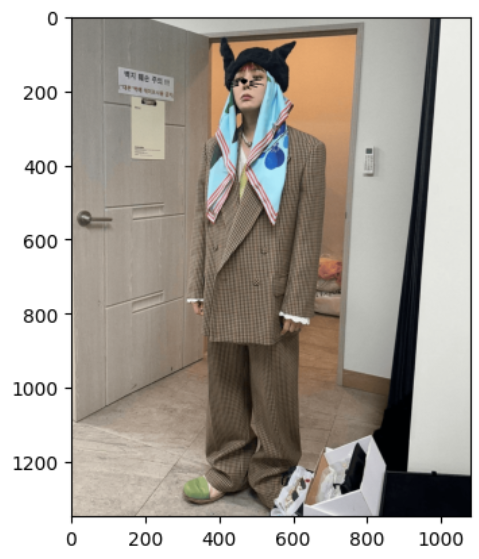
약간 더 멀리서 찍은 사진이지만, 코 중앙 위치에 스티커가 잘 들어갔다.
그럼 더 멀리서 찍으면?
import cv2
import dlib
import numpy as np
import matplotlib.pyplot as plt

# --- 1. 준비 단계 ---
# 필요한 파일 경로 설정
img_path = "/content/스크린샷 2025-10-22 003745.png"

# --- 2. 모델 및 이미지 로드 ---
detector_hog = dlib.get_frontal_face_detector()
img_bgr = cv2.imread(img_path)

img_show = img_bgr.copy() # 복사본 생성

# --- 3. 얼굴 검출 ---
# 얼굴의 bounding box 추출
img_rgb = cv2.cvtColor(img_bgr, cv2.COLOR_BGR2RGB)
dlib_rects = detector_hog(img_rgb, 1) # (image, num of image pyramid)

# 찾은 얼굴 영역 박스 리스트 (여러 얼굴이 있을 수 있음)
print(dlib_rects)

for dlib_rect in dlib_rects: # 찾은 얼굴 영역의 좌표
    l = dlib_rect.left()   # 왼쪽
    t = dlib_rect.top()    # 위쪽
    r = dlib_rect.right()  # 오른쪽
    b = dlib_rect.bottom() # 아래쪽

    cv2.rectangle(img_show, (l,t), (r,b), (0,255,0), 2, lineType=cv2.LINE_AA) # 시작점의 좌표와 종료점 좌표로 직각 사각형을 그림

img_show_rgb =  cv2.cvtColor(img_show, cv2.COLOR_BGR2RGB)
plt.imshow(img_show_rgb)
plt.show()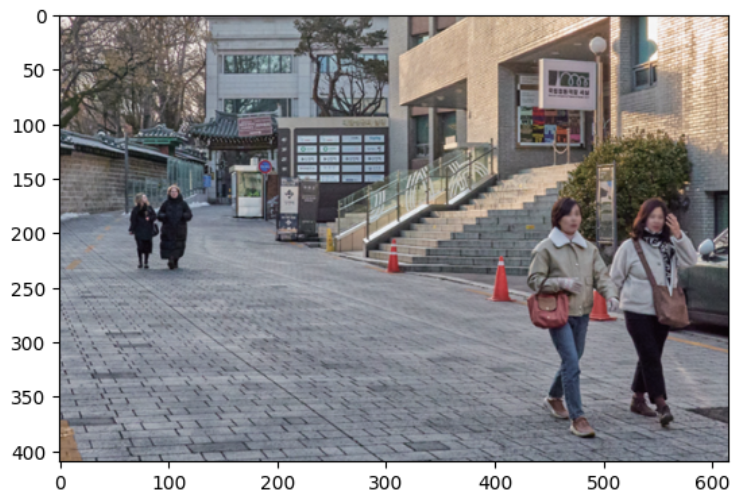
멀어서 그런건지 해상도가 낮아서 그런건지 모르겠지만, bounding box는 찾을 수 없었다.
정리하면
기본 이미지:
- 스티커 적용까지 성공
회전 이미지:
- bounding box 검출 불가
- 이유는 detector_hog의 한계일 것으로 추측됨.
밝은 이미지:
- 일정 임계값까지는 스티커 적용 가능
어두운 이미지:
- 일정 임계값까지 스티커 적용 가능
촬영 거리가 먼 이미지:
- 마찬가지로 어느 정도 이상으로 멀어지면 bounding box 검출 불가
회고
모델 하나로 눈, 코, 입 등 세밀한 부위의 정확한 위치를 추출할 수 있다는 것이 신기했다.
다만, 이미지를 회전시키면 얼굴 검출을 못 하던데, 아마 모델의 한계일 것 같다.
다음 포스팅에서는 이미지 회전 문제까지 다루도록 하겠다.
'AI > CV' 카테고리의 다른 글
| [10/22] 아이펠 리서치 15기 TIL | Shallow focus: 인물사진 모드 구현 (0) | 2025.10.23 |
|---|---|
| [10/19] 아이펠 리서치 15기 TIL | Grad-CAM (0) | 2025.10.20 |
| [10/17] 아이펠 리서치 15기 TIL | 이미지 인식 모델 AlexNet, VGG-16, ResNet (0) | 2025.10.19 |
| [10/16] 아이펠 리서치 15기 TIL | CNN(Convolutional Neural Network) (0) | 2025.10.17 |


